
Are you deciding between snapseed vs lightroom for your photo edits? This article will help you compare both apps in clear terms. I will cover features, ease of use, performance, pricing, and which app suits different users. Expect practical tips and a friendly tone to guide your choice.
Quick comparison: snapseed vs lightroom
Here is a short and useful view of the main differences. This helps you see which app fits your needs at a glance. You will get a sense of strengths and weaknesses before reading deeper.
Snapseed is a free mobile editor made by Google. It is simple, fast, and full of creative tools that work well on phones. Lightroom is a full photo ecosystem from Adobe. It has powerful raw support, cloud sync, and advanced photo management.
Both apps are strong choices, but they aim at different users. Snapseed focuses on fast, hands-on edits with intuitive tools. Lightroom targets pros and hobbyists who want precise control and cross-device workflow. Read on to learn specifics that matter to your workflow.
Below is a concise list that shows the core points to compare. Read this before you jump into features and pricing details.
Key points to compare:
- Snapseed: free, easy to use, strong creative filters and local edits.
- Lightroom: subscription-based, raw editing, cloud sync, advanced color tools.
- Snapseed is great for quick fixes and artsy looks on mobile.
- Lightroom is better for serious photo editing, batch work, and desktop workflows.
Interface and ease of use
A clean interface matters when you edit photos often. Both apps keep the workflow focused, but they do it in different ways. Snapseed aims for immediacy. Lightroom aims for consistency across devices.
Snapseed opens tools with clear icons and touch controls. You tap a tool and slide to change settings. The gestures are simple. New users can start editing fast without reading long guides. The app hides some advanced options, which keeps the screen tidy.
Lightroom uses a module-style layout that is familiar to many photographers. Panels for crop, color, detail, and effects sit in order. This makes it easier to learn a repeatable workflow. Lightroom’s layout is more detailed. That helps when you need exact control, but it can feel heavy for casual edits.
If you like a quick, playful approach, snapseed will feel natural. If you want a steady, repeatable workflow that works on phone and desktop, lightroom is the better fit. Both apps support undo steps and non destructive edits, but Lightroom’s history and presets scale better across many photos.
Editing tools and image quality
Image quality and tools determine how far you can push a photo. This section tells you which app gives what tools and what results to expect. I will list main tools and when to use them.
Snapseed offers selective adjustments, healing, precise tonal control, curves, and a wide range of filters. Its selective tool is clever and easy to use. The healing brush works well for small blemishes on mobile. Snapseed also has a RAW import option, but the raw adjustments are not as deep as Lightroom’s.
Lightroom provides deep raw processing, advanced color grading, selective masks, and noise reduction. The color tools and tone curve are powerful. Lightroom’s raw rendering often preserves more highlight and shadow detail. Lightroom also supports local masks that use AI to detect subjects, sky, and more for targeted edits.
For final image quality, Lightroom usually gives more flexibility and cleaner results for high dynamic range shots and raw files. Snapseed gives fast, strong results and can create striking looks quickly. If your goal is polished prints or professional work, Lightroom has the edge. For social posts and on-the-go creativity, Snapseed shines.
Here are core editing features to compare in short form. Read this list to match features to your needs.
- Raw support: Lightroom offers deeper raw processing and more control than Snapseed.
- Selective edits: Snapseed makes quick local edits easy. Lightroom’s masks are more precise for complex tasks.
- Noise reduction and sharpening: Lightroom has stronger tools for detail work.
- Creative filters: Snapseed has many quick filters and looks that are fast to apply.
Performance, file support, and workflow
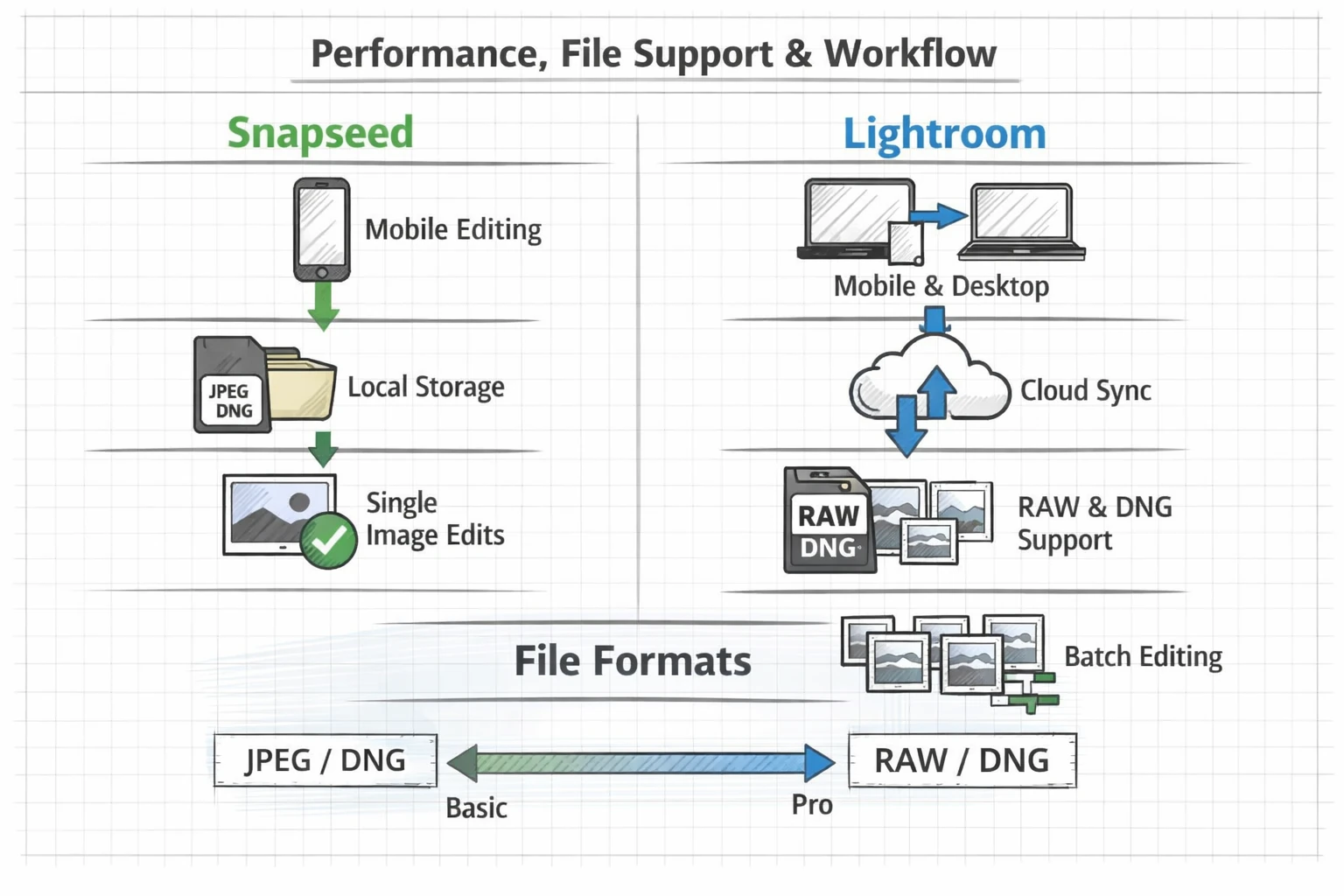
Performance affects real use. You want an app that feels fast and handles your files. Here I cover speed, file types, and how each app fits into a workflow that includes mobile and desktop.
Snapseed runs well on most modern phones. It opens images fast and applies edits quickly. It is designed mainly for mobile use, so it does not offer cloud sync by default. You save edited files locally or export them to your gallery. For many users, that local workflow is simple and effective.
Lightroom is built for cross device workflows. It syncs edits to the cloud so you can start on mobile and finish on desktop. This sync feature is a major plus for photographers who work across devices. Lightroom can handle raw files from many cameras and supports DNG on mobile. It also handles large catalogs and batch edits more professionally.
If you need quick single-image fixes and a speedy mobile-only process, snapseed performs well. If you manage many photos, need backups, and want to edit across phone and computer, lightroom fits a pro workflow. Think about how you move photos between devices and how much time you spend batch processing versus single-image edits.
Below is a short list that highlights the workflow and format differences. Use it to decide on device setup and storage choices.
- Snapseed: mobile-first, local saves, fast single-image edits.
- Lightroom: cloud sync, cross-device, strong raw and batch support.
- File formats: Lightroom supports many camera raw formats and DNG. Snapseed accepts JPEG and DNG with fewer pro controls.
- Batch edits: Lightroom handles bulk adjustments and presets better than Snapseed.
Pricing and platform support
Cost matters. Choose what fits your budget and platform. This section compares price and device support so you can plan long term. I will list the main tiers and device options next.
Snapseed is free to use with no subscription. That is a major advantage for casual photographers and people who do not want ongoing fees. It is available for iOS and Android. There is no desktop version, which keeps the product focused on phones and tablets.
Lightroom uses a subscription model for full features. Adobe offers a free mobile version with limited tools. To unlock raw editing, cloud storage, and desktop sync you need a paid plan. The subscription gives access to Lightroom Classic and Photoshop in some plans. The cost may be worth it if you want a full photo ecosystem and professional tools.
Platform support differs too. Snapseed works only on mobile. Lightroom runs on mobile, desktop, and web. This cross-platform reach can justify the subscription for pros who must edit at volume or who need backup and sync. If budget is tight and you edit mostly on phone, snapseed is a powerful free option.
Here are the main pricing and platform points in one place to help you compare quickly.
- Snapseed: free, iOS and Android only, no cloud sync built in.
- Lightroom: free tier and paid subscription for full features; mobile, desktop, and web support.
- Subscription perks: cloud backup, raw sync, presets, and integration with other Adobe tools.
- Budget choice: Snapseed for free and capable edits; Lightroom if you need pro workflows and cloud features.
Which to choose: snapseed vs lightroom
Choosing depends on your goals, device habits, and budget. This section helps you match the app to common user types. Read the short profiles and consider which one fits you best.
If you are a social sharer, travel photographer, or hobbyist who edits on your phone, snapseed likely covers your needs. It is free, creative, and quick. You can produce great looking images fast. For single images that need a strong, artistic touch, Snapseed is ideal.
If you are a hobbyist who wants to grow or a professional photographer, Lightroom gives more room to grow. It supports camera raw files, advanced color control, and a workflow that spans devices. Lightroom’s presets and batch tools save time when you have many images to process.
Some people use both. You can make a quick edit in snapseed and then finalize in Lightroom, or start in Lightroom for raw processing and finish creative touches in Snapseed. For those who follow mobile app reviews, this combined approach comes up often. It is also common to compare unrelated apps for other tasks, like whatsapp vs telegram for chat or trello vs asana for task management, when you research tools for a creative business.
Here is a simple decision list to help you choose right now.
- Pick Snapseed if you want free, fast, creative mobile edits and no subscription.
- Pick Lightroom if you want raw editing, cloud sync, cross-device work, and advanced tools.
- Try both if you want flexibility: Snapseed for quick looks, Lightroom for heavy lifting.
Key Takeaways
Both apps are strong in their areas. Snapseed is a friendly, free mobile editor with creative filters and easy controls. Lightroom is a professional-grade tool with raw support, cloud sync, and a complete ecosystem. Each app has clear strengths.
If you edit mainly on your phone and want great results fast, snapseed is a powerful and free choice. If you need deep raw edits, batch processing, and cross-device sync, lightroom is worth the subscription. Your workflow and budget will guide the final choice.
Try a few edits in each app. Edit the same photo in both and compare results. That test will show which interface and output match your style. Use the lists above to check the features you care about and pick the app that helps you create more with less friction.
Good luck deciding between snapseed vs lightroom. Enjoy editing and keep experimenting with presets and local adjustments until you find the look that fits your work.
